
Tips for Using the Subtitle Translation Feature
When using the Subtitle Translation feature, there are five possible states. Each state has its own meaning and requires specific steps to ensure proper usage. Details are as follows:
State 1: Unauthorized Configuration File
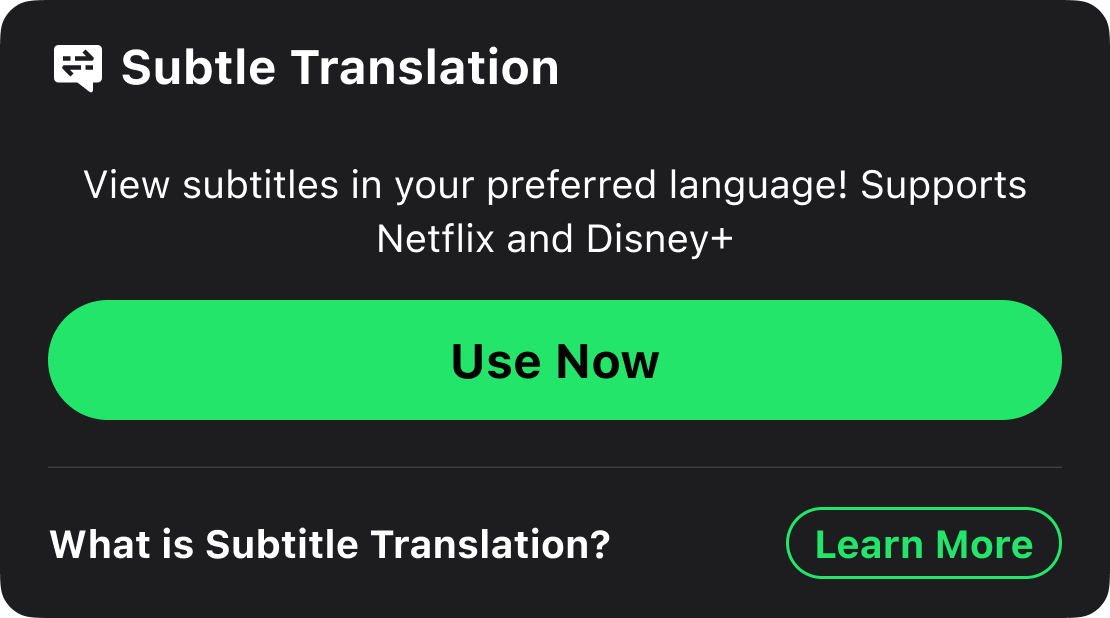
Meaning: The feature is currently unavailable because the necessary configuration file has not been authorized.
What to do:
- Tap the [Use Now] button on the app.
- A pop-up window will appear. Tap [Install].
- Follow the steps outlined on the Installation Guide page.
* Important: Ensure that all steps listed on the guide page are completed for the feature to work properly.
State 2: Authorized Configuration File, Feature Not Enabled
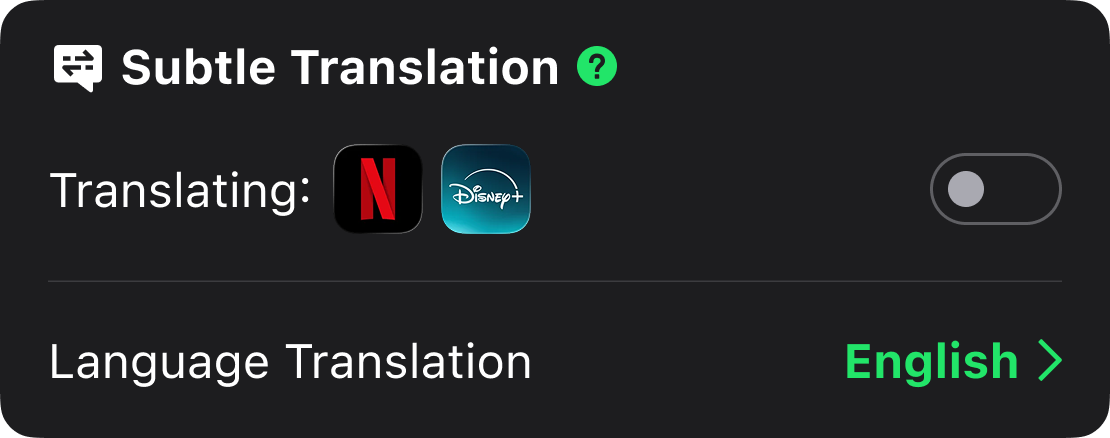
Meaning: The configuration file has been successfully authorized, but the translation feature has not been enabled.
What to do: Simply toggle the switch to enable the translation feature. Once enabled, the feature will begin translating subtitles when all other conditions are met.
State 3: Authorized Configuration File, Feature Enabled, VPN Not Connected
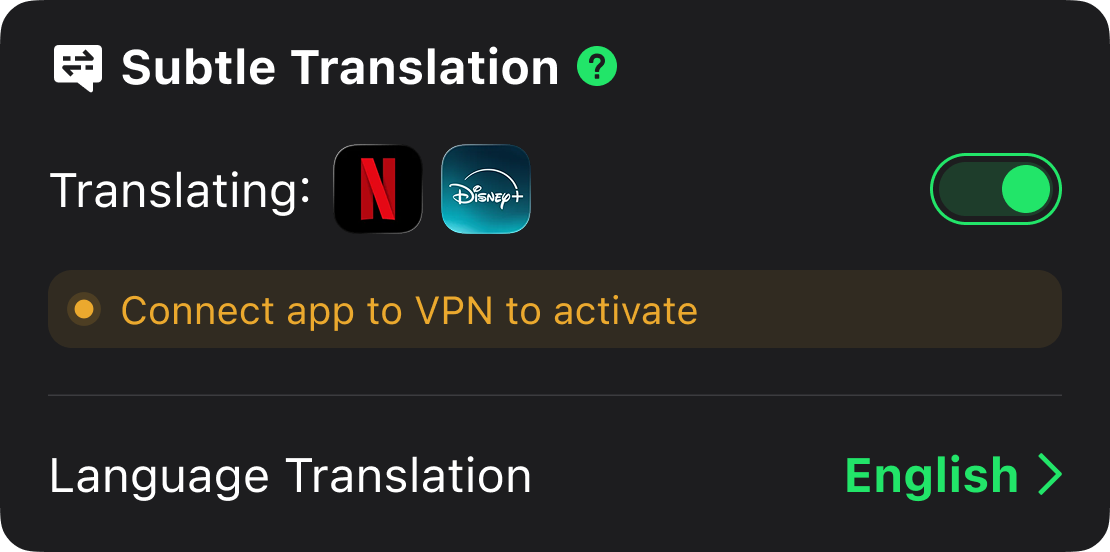
Meaning: The feature is enabled, but it is not functioning because the VPN is not connected.
What to do:
- The translation process depends on data being routed through VPN traffic. Without an active VPN connection to a supported region, the translation feature will not work.
- Once connected to a valid region, the translation feature will function as expected.
State 4: Authorized Configuration File, Feature Enabled, VPN Connected, Streaming App Not Using VPN Connection
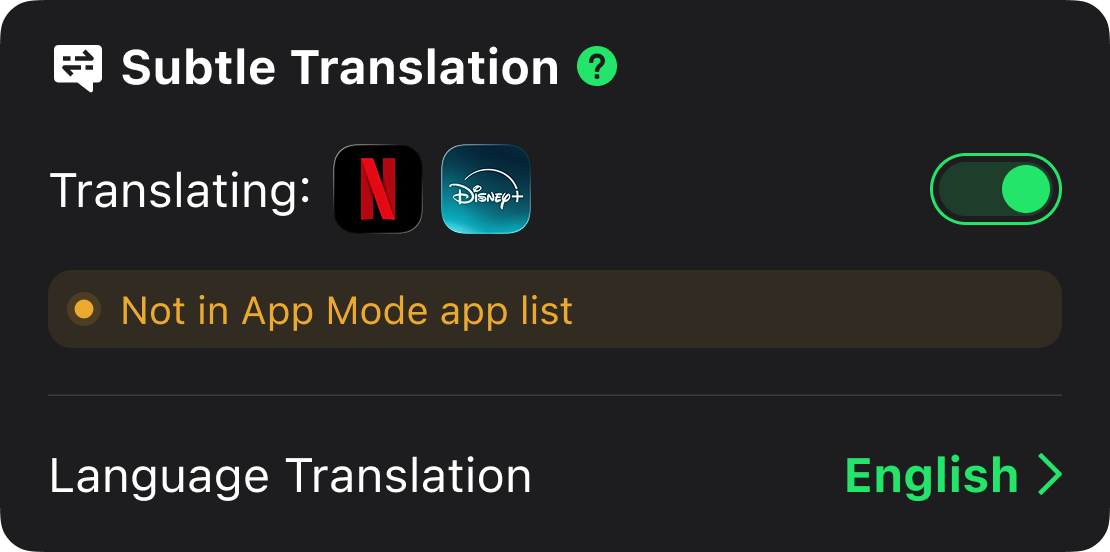
Meaning: The feature is not functioning because Netflix and/or Disney+ are not using the VPN connection.
What to do:
- Connect to Global Mode, or add Netflix and/or Disney+ to the list on App Mode and connect to App Mode.
State 5: Feature Active, Netflix Subtitles Not Translated
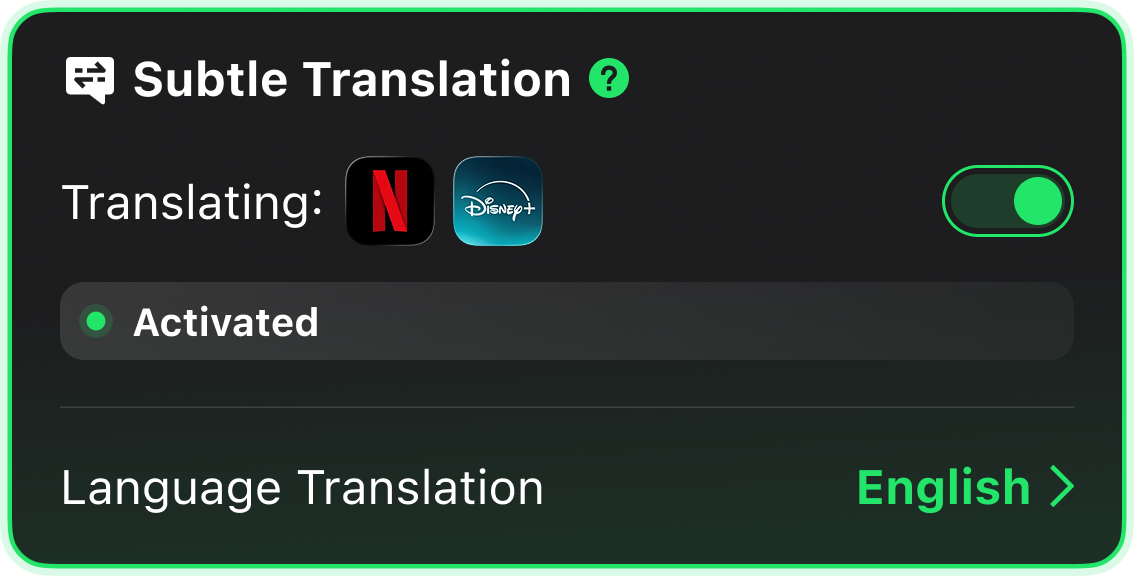
Meaning: The feature is shown to be active and working, but you may find that your Netflix subtitles are still not being translated.
What to do:
- Check the VPN server location: Ensure that the VPN is connected to a server in a region where Netflix is available and supports the feature. If the VPN is connected to a restricted or unsupported region, the translation feature cannot work, and subtitles will remain untranslated.
- Netflix is not available in these regions: China, North Korea, Russia, Syria, and Crimea
- Reconnect if necessary: Switch to a supported server location and reconnect the VPN.
Other Considerations
- Translation Delay After Switching Target Language: If you switch the translation target language in the VPN, you might experience a delay when returning to Netflix. To resolve this, simply switch the original subtitle language in Netflix to refresh the subtitle code recognition.
- iOS Version Limitation: Due to limitations in iOS system version 18.1, this feature is temporarily unavailable. Please upgrade your system to a higher version in Settings to access this feature.
- Ensure Profile is Not Deleted or Disabled: While using this feature, please ensure that the configuration profile is not deleted or disabled. Doing so will impact the feature’s performance. Rest assured, the steps do not collect any personal data.